How to Batch Download Images
 Last updated 6 days ago


Rated 3.8 / 5 (5 reviews) Bulk Image Download
Required software:
Saving images one by one from search engines or web pages is tedious and time-consuming, especially when gathering assets for design mood boards, research, or media archives. Vovsoft Picture Downloader automates this process, letting you scrape and save dozens—or even hundreds—of image files directly to your PC in seconds.
Below is a step-by-step guide on how to batch download images using either a keyword search or a specific website URL.
Method 1: Batch Download Images by Search Query
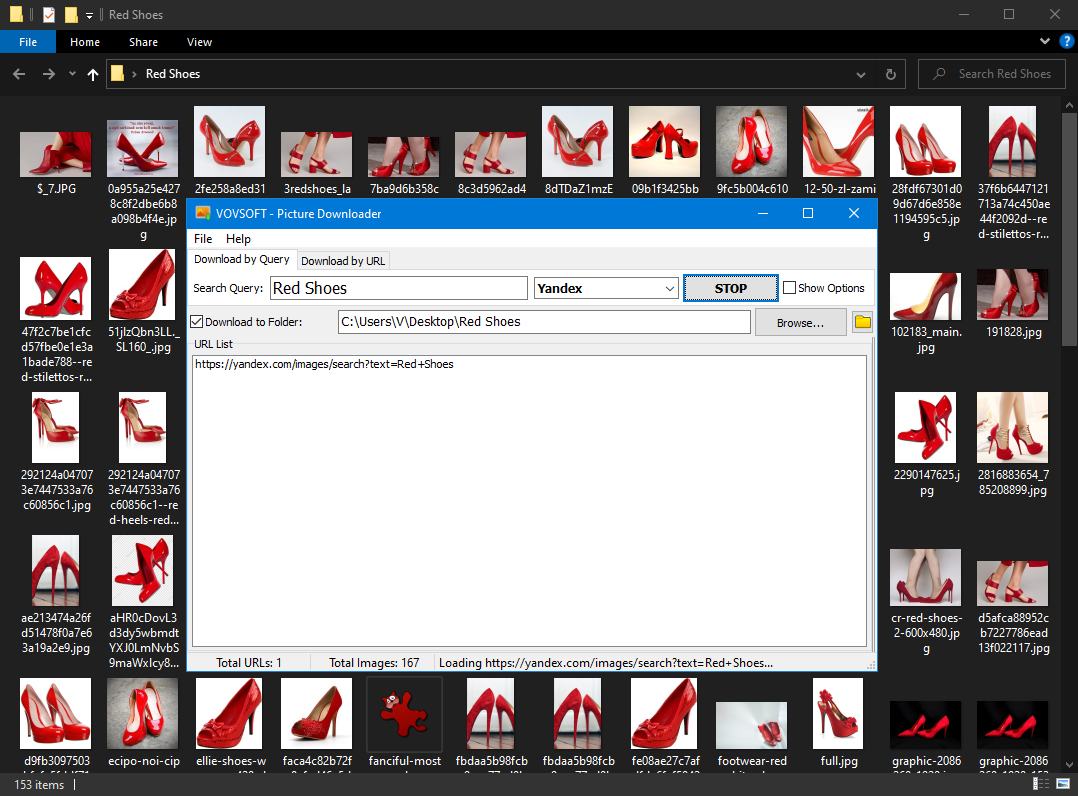
If you want to gather images related to a specific topic without manually browsing through search engine results, use the built-in query scraper.
- Open the Search Tab: Launch Vovsoft Picture Downloader and ensure you are on the Download by Query tab.
- Enter Your Keyword: Type your topic into the Search Query field (for example, Red Shoes).
- Select a Search Engine: Use the dropdown menu next to the search bar to choose your preferred search engine (such as Yandex, Google, or Bing).
- Choose a Destination Folder: Check the Download to Folder box and click Browse... to select or create the directory where your images will be saved.
- Start Downloading: Click the Start button. The software will begin crawling search result pages, populating the URL List and Image List, and automatically saving matching files into your chosen folder.
- Stop When Ready: Because search engines generate thousands of related links, monitor the Total Images counter at the bottom of the window and click STOP once you have enough files.
Method 2: Batch Download Images from a Specific Website
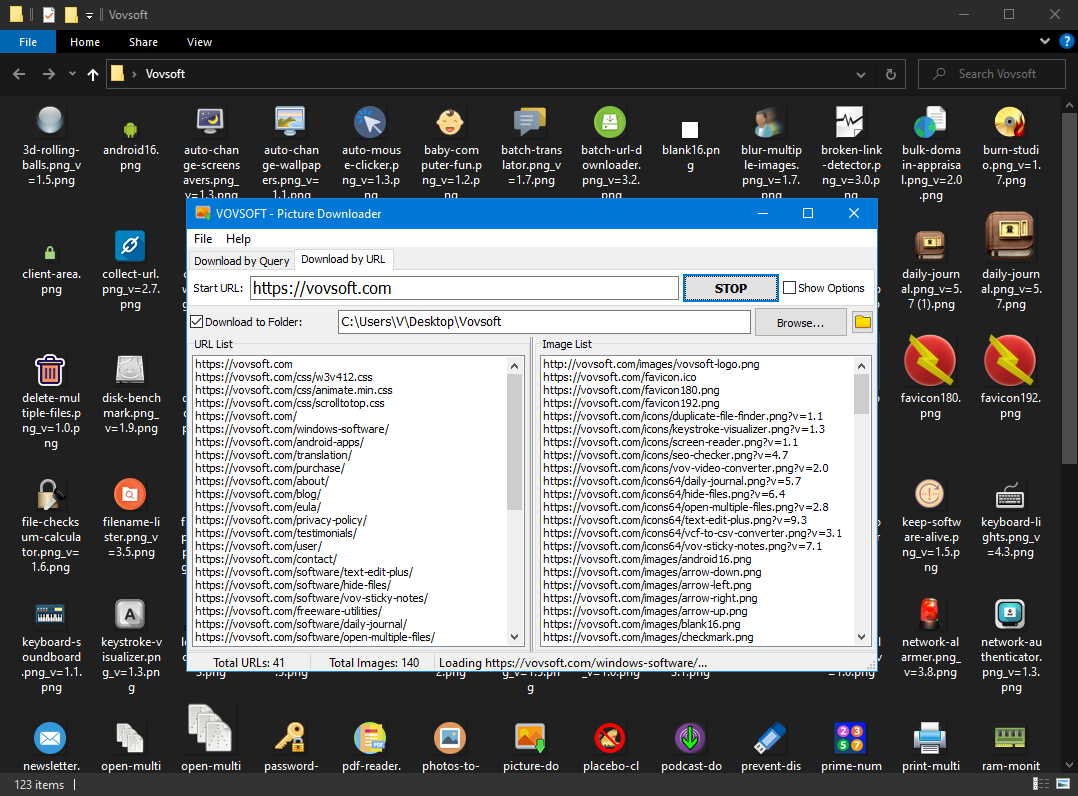
If you already have a webpage or domain in mind and want to extract every graphic hosted on it, use the URL scraper.
- Switch to the URL Tab: Click the Download by URL tab at the top of the application window.
- Paste the Target Address: Enter the full web address into the Start URL field (for example, https://vovsoft.com).
- Set Your Output Folder: Verify that Download to Folder is checked and set to your desired destination folder.
- Run the Scan: Click Start. The program will scan the page—and crawl linked subpages if recursive scanning is enabled—to extract all available images (JPG, PNG, WEBP, SVG, ICO, BMP, TIFF, etc.).
- Review or Export Lists: Once complete (or after clicking STOP), all downloaded files will appear in your destination folder. You can also use the File menu to export the discovered URLs or image links to a plain text file for future reference.
Tips for Cleaner Downloads
- Customize Filters via Options: Check the Show Options box on the right side of the window before starting a scan to refine your results.
- Filter by File Type & Size: Restrict downloads to specific image extensions (such as .jpg or .png) or set a Minimum Filesize to avoid cluttering your folder with tiny website icons, buttons, and tracking pixels.
- Set Image Limits: Use the Image Limit option if you want the software to stop automatically after grabbing a set number of files, or toggle Recursive URL Scan off when you only want images from a single webpage rather than an entire domain.
 Picture Downloader

Continue Reading
 Responses (2)
werysse
Nov 22, 2026 at 10:25 am (PST) |
Reply aucun interêt si pas d'aide réelle, ou de réponse aux demandes
Stephen
Jan 29, 2025 at 04:03 am (PST) |
Reply This help page for Picture Downloader really needs a couple of simple examples. e.g. what to write to download a set of pictures www.xyz.com/fred1.jpg, www.xyz.com/fred2.jpg, www.xyz.com/fred3.jpg etc.