Having a reliable, offline utility is essential when you need to quickly transition between pixel and vector graphics. Because Vovsoft SVG Converter is a standalone desktop application, it allows you to process your files entirely on your local machine. This offline-first approach ensures your artwork and data remain completely private while giving you access to professional-grade conversion tools.
Here is a guide on how to utilize its core features.
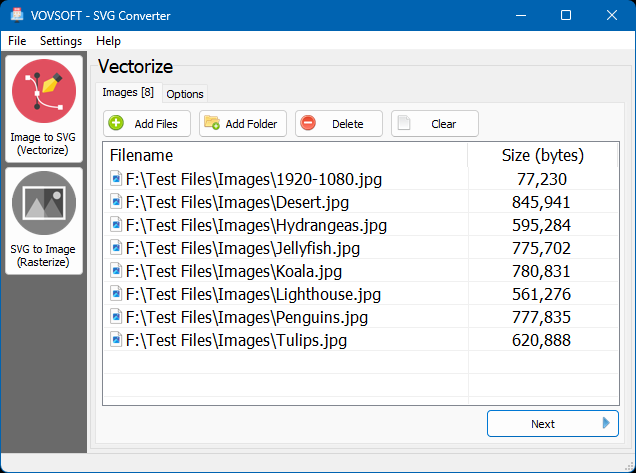
Image to SVG (Vectorize)
Easily convert raster images (like JPEGs or PNGs) into infinitely scalable vectors. This is perfect for generating high-quality SVG files from standard photos or pixelated logos, offering specific parameters to control the rendering engine.
To get the perfect vector output, you can customize these core parameters:
- Preset: Choose a starting baseline for the conversion engine, selecting between Black and White, Poster, or Photo.
- Clustering: Define how the color regions form in the vector by selecting Black and White, Color Cluster, or Watershed.
- Hierarchical: Set the clustering style to Stacked or choose Cutout to create a seam-free mosaic effect.
- Mode: Define your curve-fitting style by choosing Pixel, Polygon, or smooth Spline.
- Destination: Select exactly where you want your finished, scalable graphics to be saved, whether alongside the originals or in a dedicated folder.
SVG to Image (Rasterize)
When you need to batch convert your scalable vectors into standard, widely supported formats, the rasterization feature handles it effortlessly while preserving background transparency where applicable.
- Load and Scale: Add your SVG files or entire folders to the queue. In the options, you can specify an exact pixel Width and Height for lossless scaling, and easily check the "Keep aspect ratio" box to prevent any distortion.
- Output Format: Export your batch as PNG, WEBP, JPEG, BMP, HTML, or PDF.
- Apply Filters: Check the "Convert to grayscale" box to instantly generate black and white versions of your pictures.
- Overlay Image: Easily protect your work before web distribution. Select a transparent PNG in the overlay field to bulk-add watermarks, company logos, or other branding elements directly over your converted results.
- Destination: Choose to save your new files in the same folder as the original, or browse for a custom output directory.


 Last updated 2 months ago







 SVG Converter
